Pages


TECHNOLOGIS INFO

Technology Solutions, technologisinfo provides users with Mobile, Computer ,application and PC software.


TECHNOLOGIS INFO

Technology Solutions, technologisinfo provides users with Mobile, Computer ,application and PC software.


TECHNOLOGIS INFO

Technology Solutions, technologisinfo provides users with Mobile, Computer ,application and PC software.


TECHNOLOGIS INFO

Technology Solutions, technologisinfo provides users with Mobile, Computer ,application and PC software.

Wednesday, April 12, 2017

How to Run Android Apps on a PC Using Bluestacks


BlueStacks 2 Final Release is the first production software that allows you to use your favorite mobile applications on Windows PCs. You can download applications such as angry birds space, candy crush legend, telegraph, Temple Run 2, Evernote or document directly into BlueStack, or use the BlueStacks Cloud Connect Android app to sync applications from your phone. Basically, this application is the PC’s Android emulator. BlueStacks free download the latest version of Windows PC. It is BlueStacks complete offline installer.

Download Blue Stacks app on u a Pc


Installd BlueStacks App


 Sing In With You a Google Account


                                                          Follow the Steps


Monday, April 3, 2017

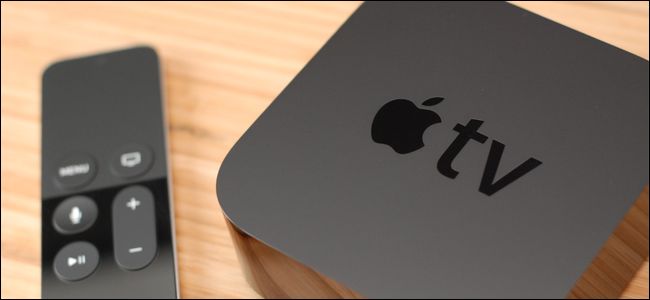
How to Set Your Apple TV to Automatically Install Your iPhone’s Apps

How to Set Your Apple TV to Automatically Install Your iPhone’s Apps
If there’s an Apple TV compatible version of your favorite iPhone or iPad app, but it never makes it to your Apple TV, that doesn’t do you a lot of good. Fortunately, with a simple tweak, you can ensure you’re getting the best apps on both your phone and your TV.
Now that Apple TV and the underlying tvOS have started to mature, there are tons of crossover apps that bring your favorite iOS apps to your TV. In fact, there are so many tvOS apps now, it’s easy to overlook them and not even realize that your favorite time-wasting iPad game or iPhone media app is available on the Apple TV. Thankfully, since the introduction of tvOS 10, you can configure your Apple TV to automatically grab the tvOS versions of iOS apps installed on iPhones and iPads that share the same Apple ID. The feature is off by default, however, so let’s take a moment to flip it on.
Open up the Settings app on your Apple TV and select the “Apps” category.
Toggle “Automatically Install Apps” on (and, if for some reason “Automatically Update Apps” is off, turn that on also).
Now, whenever you install an app on an iOS device that uses the same Apple ID as your Apple TV, if there is a compatible app for tvOS it will be automatically loaded on your Apple TV. While that was simple enough, our work here isn’t quite done. Turning the “Automatically Install Apps” function on doesn’t retroactively apply the feature to iOS apps you’ve already downloaded. So you’ll need to manually add apps to your Apple TV that predate this setting change.
Thankfully, it’s super easy to see which apps are missing. Open up the App Store app on your Apple TV and navigate to the “Purchased” tab, as seen below. There you can select “Not on This Apple TV” and see all the apps you’ve purchased on your mobile device that have companion tvOS apps.
Simply select the apps you want on your Apple TV and install them. Don’t worry if you find yourself buried under new apps—it’s very simple to rearrange your apps for a more user-friendly experience and delete apps to free up space
From this point forward, the only time you’ll need to manually install apps on your Apple TV is if you are either a) installing a tvOS only application that won’t be automatically installed as a companion app, or b) installing an app purchased by a member of your “Family Sharing” family.
If, for example, your daughter bought a TV-worthy game on her iPad, like Transistor or Lumino City, and either of you want to play it on the Apple TV,  you’ll have to manually install it by opening up the App Store app, selecting “Family Sharing” and then selecting the user that purchased the app. There you can browse their purchased apps and download them to your Apple TV just like we browsed the “Not on This Apple TV” category above.
Other than the minor hiccup of manually installing old and shared apps, the process is very smooth and all your apps will automatically make the jump from your iPhone to your Apple TV without a hitch.

How To Permanently Delete Your Facebook Account & Backup for your all facebook data

How To Permanently Delete Your Facebook Account & Backup for your all datas


Step 1: Backup all of your data


First of all, it’s time to backup all posts, videos and photos.
Click the “down arrow” in the upper right-hand corner

In General Account Settings, Click ‘download a copy of all your Facebook data’, download archive.


Step 2: Deactivate your account

Then General settings, click Manage account  then click deactivate your account.


You’ll also be asked to give a reason why you’re leaving.
Now all your Facebook data will be de-indexed but will be able to be easily restored.

Step 3: Delete your Facebook account

Click on the “Quick Help” icon in the upper right-hand corner, click then search for “whats the difference between deactivating and deleting my account”.


Click the delete my account. Put in your password, submit captcha. Hit OK. That’s it.


Here is the link to permanently delete your facebook account:
                                                                        
https://www.facebook.com/help/delete_account


Saturday, April 1, 2017

How to Block Websites Easily

How to Block Websites Easily


From Website-Blocker: Block Any Website Easily with Website-Blocker. Powerful yet easy to use. Block and Unblock unlimited number of Websites with one click. Protect access to blocked Websites with your password. Works with all browsers. Doesn't slow down surfing like many Web filters out there.

 Step 1
Download Tha Wap Blocker (http://www.thewebblocker.com/download/)


Step 2
Then Install Tha Wap Blocker And Open Tha Wap Blocker Software And Create Your Wap Blocker password Than Click Ok Button


Step 3

Then Open"d tha Wap Blocker.  


Step 4

Select Tha computer User List And Select u a user


Step 5

Go to Browse And Copy tha Blocking URL.


          Than Past Blocking URL IN Address List Box Than Click Blocking Address Button

               Tha Wap page is Blocking


How Create Bootable USB Drives to Install (Almost) Any OS

Create Bootable USB Drives to Install (Almost) Any OS


With the advent of ultra portable laptops, optical drives are becoming a thing of the past. Although not having optical drives allows manufacturers to make lighter devices, it causes problems to users when they want to fresh install operating systems, as most of them are still available in the form of CDs, DVDs and downloadable ISOs. For users of these devices, the only option then remains is to use a flash drive to install the operating system of their choice.

Not surprisingly, there are also a few of us who prefer installing operating systems from flash drives for its faster speed. There are also a few of us who prefer to keep live operating systems on our flash drives to access computers without having an OS by simply plugging in our devices.

With such a lot of users needing to create bootable USB flash drives, it appears imperative that OS manufacturers provide an inbuilt way to create them with each DVD and CD they provide. However, that is not the case with all operating system manufacturers.

In fact, most of the users are left hunting for third party applications that can create a bootable USB drive for their specific operating system. To add to a user's misery, the OS manufacturers that do provide an application for this make them OS specific (like the Windows 7 USB/DVD tool) and do not support ISOs and DVDs of other OSs. Some of them fail to work even if the original ISO/DVD is slightly modified (slipstreamed etc.).

Use Rufus to create bootable USB media

If you too are one such user looking for a solution, you can stop looking and try Rufus, an open source tool to create a bootable USB drive from any bootable ISO.

Rufus is small in size (nearly 615 KB) and claims to be faster at creating bootable USB drives than most applications of its type. Rufus is also portable which means that you need not install this software to use it. Just double click on the executable file and the application will start working. Rufus also allows you to add fixes to use your bootable flash drives on older computers having BIOSs which do not support booting from them.

Strangely however, Rufus can only create bootable flash drives from ISOs meaning you need to have an ISO image of the CD or DVD of the OS of your choice.

I do not think this should be too much of a problem considering how easy it is to create ISOs from DVDs and CDs.

How to use Rufus?

1) When you start Rufus, the first option that you will see is Device:. It contains all your connected USB drives. If you plug in a USB drive after starting Rufus, the drive you have connected will shortly be available here.

2) You will not need to modify the Partition Scheme and target system type, as the default choice is suitable for making the USB drive work on both UEFI and legacy BIOS computers.

Create Bootable USB drives
Rufus in Windows 8

3) Change the file system from FAT32 to NTFS from the dropdown menu. This is the file system with which your USB drive will be formatted with. Do note that older computers will not boot from a flash drive formatted as NTFS. Do not modify the cluster size. Enter the name you want for your USB device in the Volume label box.

4) Check the Create a bootable disk using checkbox if it is not already checked. In the dropdown menu next to it, select ISO image. Click on the button right to it to locate your ISO image.

Do note that Rufus will format your USB drive deleting everything on it before making it bootable. So, make sure that it does not contain any important data.

5) Click on Start to format your USB drive and extract all files of the ISO to it.

To install the OS, restart your computer and select your USB device as the primary boot option in the BIOS boot menu.

Compatibility
Rufus works on all the latest versions of Windows and can be used to extract the following ISOs to a bootable USB drive:-

How to View Saved WiFi Passwords on Windows 7, 8, & 10 (CMD COMMAND)


In Windows 8 and 10, you have to open a command prompt by going to Start and typing in CMD. When the command prompt opens, type in the following command:
  
   Then type tha command and enter
netsh wlan show profiles 

You’ll find all the wireless profiles listed under User Profiles. The name of the WiFi network is on the right. In my case, I only have one WiFi network listed. Now to see the password for a profile, type in the following command:
netsh wlan show profile name=profilename key=clear

Go ahead and replace profilename with the actual name of the WiFi network listed from the previous command. In my case, the WiFi network is named VFTJM. You do not need to use quotes anywhere in the commands.
When you run the second command, you’ll get a lot of output, but you are only interested in finding the line that starts with Key Content. To the right will be the WiFi password. I’m not sure why Microsoft removed the convenience of seeing all your previously connected WiFi networks in Windows 8 and 10, but thankfully there is still a way to get all of the information. If you have any questions, feel free to comment. Enjoy!

Share Post